
Digital Marketing for Small Businesses in India: Platforms, Tools and Strategy
.webp&w=3840&q=100)

Imagine running a coffee shop. Every day, people search "coffee near me," see your Google listing, and either call you, tap for directions, or click through to your website. For years, you could only see a fraction of that story in Google Analytics. Calls and directions were invisible. Only website clicks showed up, and usually as confusing "direct traffic."
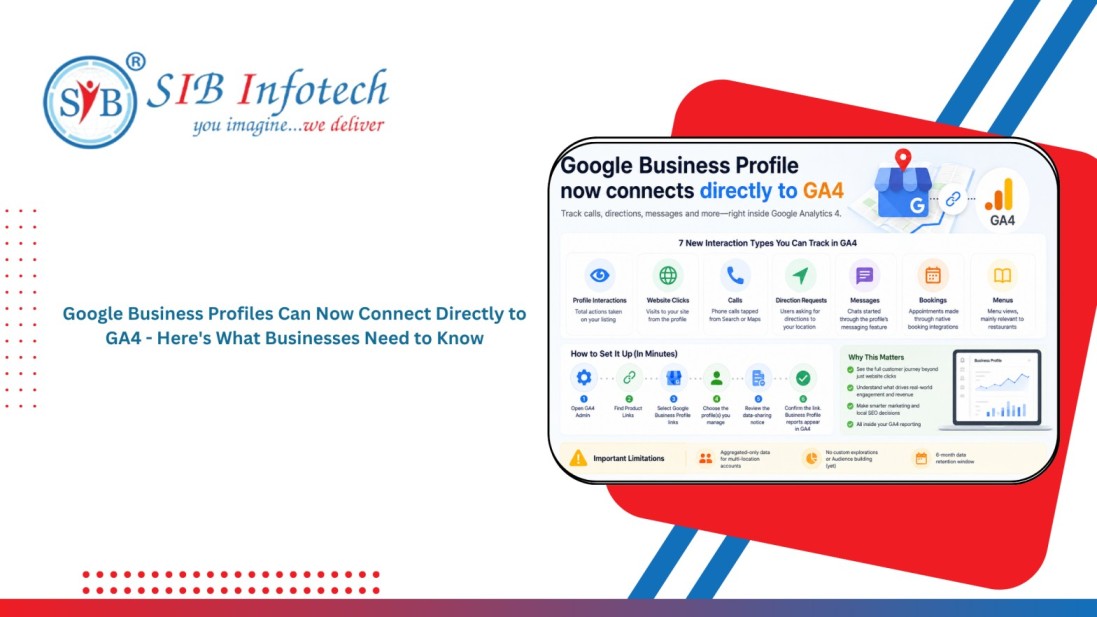
That gap has finally closed. Google has rolled out a native integration that lets you connect your Google Business Profile straight to GA4. Once you link a profile through the Product Links section in GA4 Admin, a dedicated reporting section appears that covers interactions, website clicks, calls, directions, messages, bookings, and menus.
If you manage local SEO, run a multi-location business, or just want to know whether your Google listing is actually driving customers, this update matters. In this guide, you'll learn what the integration does, how to set it up step by step, what it can't do yet, and how to use the new data without making rookie mistakes.
Local businesses have always known intuitively that their Google Business Profile drives customers — but proving it, and reporting it alongside website performance, was surprisingly difficult. A "call now" tap or a "get directions" click on your profile never generated a session in GA4 the way a website visit did, leaving a meaningful chunk of your actual customer journey invisible to your analytics. This new integration finally closes that attribution gap natively, without third-party call tracking software or complicated workarounds.
Once connected, GA4 surfaces a dedicated reporting section covering the full range of Business Profile interactions: profile views, website clicks originating from the profile, phone calls initiated directly from the listing, direction requests, messages sent through the profile's chat feature, bookings made via integrated booking partners, and menu views for food businesses. This is a significant expansion beyond the old system, where only website clicks were even partially visible, and usually miscategorized.
Pro Tip: After connecting, compare your new "calls" and "direction requests" numbers against your old assumptions. Many local businesses discover their profile is driving far more phone-based conversions than their website ever showed — a signal to invest more in profile optimization, not just the website.
The integration is a major step forward, but it isn't a complete replacement for dedicated conversion tracking. It reports interaction counts, not necessarily attributed revenue or lead quality — a call or direction request shows up as an event, but whether that call turned into an actual customer still requires your own follow-up tracking (a CRM note, a booking confirmation, or manual reconciliation). Businesses relying entirely on this data for ROI calculations without connecting it to actual conversion outcomes risk overstating or understating the profile's real business impact.
| Interaction Type | Before Integration | After Integration |
|---|---|---|
| Phone calls from listing | Invisible in GA4 | Tracked as a distinct event |
| Direction requests | Invisible in GA4 | Tracked as a distinct event |
| Website clicks from profile | Often miscategorized as direct traffic | Correctly attributed to the profile source |
| Actual revenue from a call | Not tracked | Still requires manual CRM reconciliation |
For businesses managing several locations, this integration finally allows profile-level performance comparison inside the same GA4 property used for the website — surfacing which locations generate the most calls versus direction requests versus website clicks, and letting local marketing budget be allocated based on actual interaction data rather than guesswork or manual spreadsheet exports from each individual listing.
This GA4 update removes one of the longest-standing blind spots in local marketing measurement, and any business relying on Google Business Profile for customer discovery should connect it immediately — the setup takes minutes and the visibility gain is immediate. For businesses that want this data actively used to improve rankings and conversion rather than just reported on, pairing the new visibility with ongoing SEO services ensures the insights actually translate into profile optimizations and content changes, not just a nicer-looking dashboard.
Our 4.8 average client rating is built on delivering the results we promise. From SEO rankings and lead generation to web development and paid marketing, our clients across 40+ countries have shared their experience publicly.
4.8

Digital Marketing and SEO Agency Reviews about SIB Infotech


Rupesh Maniar
Real Value Finloan Services Pvt. Ltd.
SIB Infotech has designed website for our company. We are very happy with outcome. They are not only professional but also putting their heart into work. We will always refer them for quality work and perfect price.
Reviewed From


Tima Elhajj
CEO & Founder, Tima Media
The client loved the platform that the SIB Infotech team developed for them, especially the calculator function. The company appreciated the team's high level of professionalism, communication, and care on the project. They are happy and willing to work with the team again.
Reviewed From