
Digital Marketing for Small Businesses in India: Platforms, Tools and Strategy
.webp&w=3840&q=100)
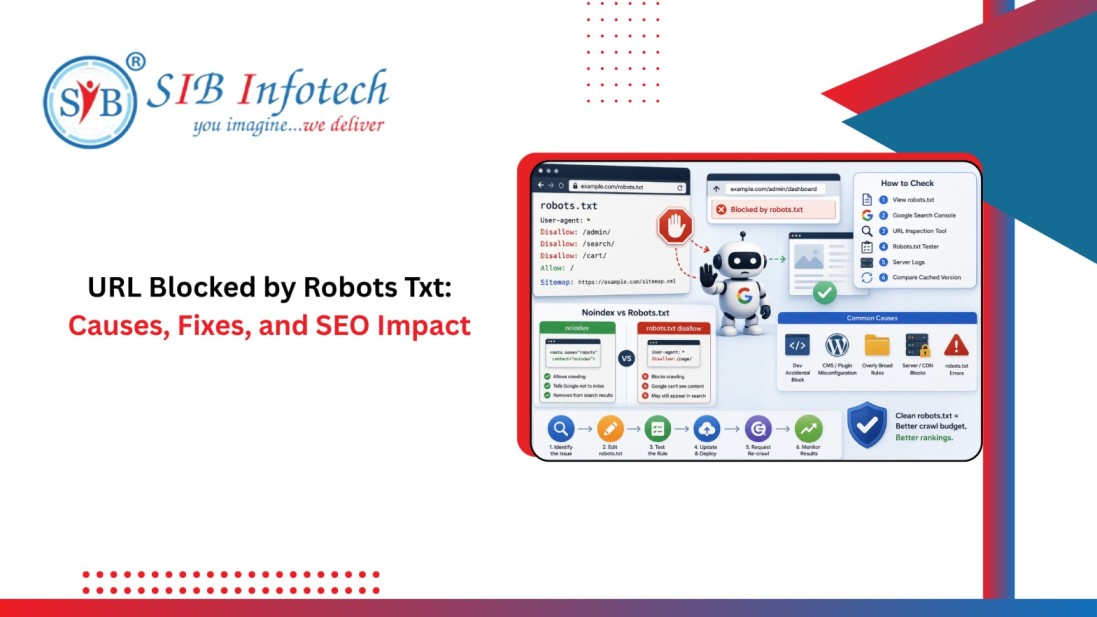

A URL blocked by robots txt is one of the most common warnings website owners see inside Google Search Console. It looks alarming at first glance, especially when an important page suddenly shows this status. But this warning does not always mean something is broken. Sometimes it is exactly what a website owner wants. Other times it is a costly mistake that stops Google from crawling pages that should be ranking.
This guide explains what the warning means, why it happens, and how to fix it when it is unintentional. It also covers the difference between noindex vs robots txt, since these two are often confused, and walks through how to check if URL is blocked by robots txt using free tools available to every website owner.
noindex tag. If blocked, search engines cannot crawl the page to discover the noindex directive.
The robots.txt file, formally known as the Robots Exclusion Protocol (REP), is a simple text file placed in the root directory of your website (e.g., https://example.com/robots.txt). Despite its simplicity, it serves as the gatekeeper for search engine crawlers. In 2022, the Internet Engineering Task Force (IETF) officially standardized the Robots Exclusion Protocol under IETF RFC 9309, establishing clear rules for how web crawlers must interpret these directives.
When a search engine bot like Googlebot or Bingbot visits your website, the very first request it makes is to your robots.txt file. The server's response to this request dictates the crawler's subsequent behavior:
To understand why a URL is blocked, you must first understand the syntax that governs the robots.txt file. The file is structured around "user-agents" and "directives."
User-agent: *
Disallow: /checkout/
Allow: /checkout/thank-you
Sitemap: https://example.com/sitemap.xml
In this example:
*) is a wildcard meaning "all crawlers." You can target specific bots, such as User-agent: Googlebot./checkout/ is off-limits.It is critical to note that Googlebot evaluates directives based on path specificity. If there are conflicting rules, the directive with the most specific (longest) path pattern wins. This nuance is where many manual errors occur, often requiring the intervention of specialized SEO services to audit and resolve.
---When you log into Google Search Console (GSC), navigating to the "Indexing" or "Pages" report may reveal a warning labeled "Indexed, though blocked by robots.txt" or "Blocked by robots.txt".
Crucial Distinction: Crawling vs. Indexing
Crawling is the process where search engine bots download and parse your page's content. Indexing is the process of adding that page to Google's search database. Robots.txt blocks crawling, not indexing.
If Googlebot cannot crawl a page because of a robots.txt restriction, but finds external or internal links pointing to that page, it may still decide to index the URL. Because Googlebot cannot access the page's actual content, it cannot read the on-page copy, meta tags, or structured data. As a result, the search engine result page (SERP) listing for that URL will look incomplete, often displaying a generic snippet like:
"No information is available for this page. Learn why..."
This is highly detrimental to your brand's search presence. Not only does it look unprofessional to users, but it also prevents the page from ranking for targeted keywords because Google has no contextual content to evaluate. If this occurs on a high-value transactional page, it can severely impact your organic traffic and conversion rates.
---
One of the most common mistakes in technical SEO services is using robots.txt to prevent indexation. To keep a page out of Google's index, you must use a noindex directive, not a robots.txt block.
Let's break down why these two methods cannot be used together. If you place a noindex tag on a page, Googlebot must crawl the page to see that tag. If you also block that page in your robots.txt file, Googlebot will never crawl it, meaning it will never see the noindex tag. Consequently, the page may remain in the index indefinitely if external links point to it.
| Feature / Metric | Robots.txt Disallow | Meta Noindex Tag | X-Robots-Tag (HTTP Header) |
|---|---|---|---|
| Primary Purpose | Conserve crawl budget; prevent bots from accessing specific directories. | Prevent HTML pages from appearing in search engine results. | Prevent non-HTML files (PDFs, images) from appearing in search results. |
| Prevents Crawling? | Yes | No | No |
| Prevents Indexing? | No (can still be indexed via external links) | Yes | Yes |
| Preserves Link Equity? | No (blocks PageRank flow) | Temporary (eventually treated as nofollow if left long-term) | Temporary (similar to meta noindex behavior) |
| Best Use Case | Internal search pages, checkout paths, API endpoints, admin panels. | Thank-you pages, landing pages for paid campaigns, duplicate utility pages. | Blocking PDF downloads, docx files, or specific image assets from indexing. |
In our years as a premier SEO agency, we have seen minor configuration errors lead to catastrophic drops in organic traffic. Below are the most common causes of unintentional robots.txt blocks.
During the web development solutions phase, developers typically block search engines from crawling the staging site to prevent duplicate content issues. This is usually done with a blanket disallow:
User-agent: *
Disallow: /
When the site goes live, developers sometimes copy the staging files directly to the production server without updating the robots.txt file. This single slash (/) blocks Googlebot from crawling the entire production website, leading to a rapid de-indexing of the site.
WordPress has a built-in setting under Settings > Reading labeled "Discourage search engines from indexing this site." Checking this box adds a blanket disallow to your virtual robots.txt file. Content managers or developers often check this during site redesigns and forget to uncheck it post-launch.
The use of wildcards (*) and line-end anchors ($) can lead to unintended blocks if not executed with precision. For example, if you want to block a specific folder named /admin/, but write:
Disallow: *admin
You will accidentally block any URL containing the word "admin", such as https://example.com/blog/how-to-administer-first-aid.
Robots.txt is strictly case-sensitive. If your directory is named /Downloads/ and your robots.txt contains:
Disallow: /downloads/
Crawlers will ignore the block for the capitalized /Downloads/ folder and continue crawling it, while blocking any lowercase variations.
If you suspect your website is suffering from crawl blocks, follow this systematic diagnostic framework to identify and isolate the issue.
Paste the affected URL into the search bar at the top of GSC. If it is blocked, the "Coverage" section will display "Crawl allowed? No: blocked by robots.txt".
Access the legacy Google Robots.txt Tester. Input your URL and select the appropriate user-agent (e.g., Googlebot) to see the exact line of code causing the block.
Click "Test Live URL" in GSC. This bypasses the indexed cache and evaluates the live robots.txt file currently deployed on your server.
Configure Screaming Frog SEO Spider to respect robots.txt. Run a crawl of your site and filter by the "Response Codes" tab to view all URLs marked as "Blocked by Robots.txt".
For developers and advanced technical SEOs, you can quickly check the HTTP response headers and content of your robots.txt file using a simple curl command in your terminal:
curl -I https://example.com/robots.txt
This command returns the HTTP header. Ensure that it returns a HTTP/1.1 200 OK status. If it returns a 500 Internal Server Error, search engines may stop crawling your site entirely until the server issue is resolved.
Once you have identified the line in your robots.txt file causing the block, you must execute the appropriate fix based on your strategic goals.
If Google Search Console flags an important product, category, or blog page as blocked, you must edit your robots.txt file to remove the restriction.
robots.txt file in the root directory.Disallow line matching your blocked URL. For example, if your page is /services/seo and you see Disallow: /services/, this rule is blocking all pages within that folder.Allow directive above it:
Disallow: /services/
Allow: /services/seo
Our 4.8 average client rating is built on delivering the results we promise. From SEO rankings and lead generation to web development and paid marketing, our clients across 40+ countries have shared their experience publicly.
4.8

Digital Marketing and SEO Agency Reviews about SIB Infotech


Rupesh Maniar
Real Value Finloan Services Pvt. Ltd.
SIB Infotech has designed website for our company. We are very happy with outcome. They are not only professional but also putting their heart into work. We will always refer them for quality work and perfect price.
Reviewed From


Tima Elhajj
CEO & Founder, Tima Media
The client loved the platform that the SIB Infotech team developed for them, especially the calculator function. The company appreciated the team's high level of professionalism, communication, and care on the project. They are happy and willing to work with the team again.
Reviewed From